
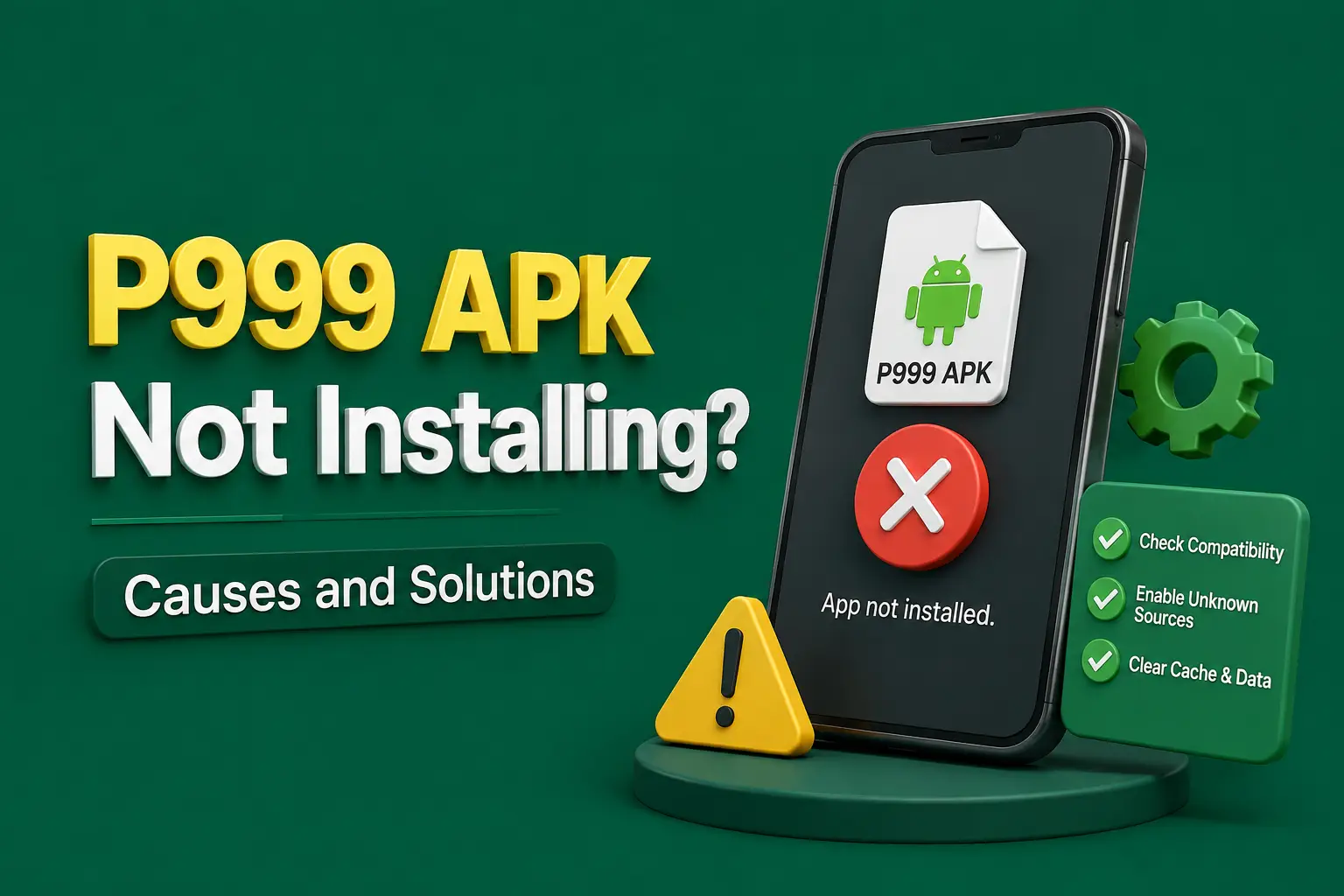
P999 APK Not Installing? Causes and Solutions
A P999 APK may fail to install because the file is incomplete, the phone lacks storage, Android blocks the source, or another version is already installed.
Do not download several random copies until one works. A failed installation can be a useful warning that the file is damaged, incompatible or unsafe.
Google recommends keeping Play Protect enabled because it checks applications from Google Play and other sources for potentially harmful behaviour.
Why Is the P999 APK Not Installing?
The P999 APK is usually not installing because the download is incomplete, the phone lacks free storage, Android is blocking installs from that source, the file does not suit the device, or an older version signed differently is already installed. Check each cause in that order before downloading another copy.
P999 APK Install Quick Facts
| Item | Detail |
|---|---|
| Supported platform | Android only — iPhones cannot install APK files |
| APK version and size | Not published consistently — check the verified source |
| Permission needed | Install unknown apps, for the browser or file manager only |
| Most common causes | Incomplete file, low storage, blocked source, signature conflict |
| Play Protect | Keep it on and investigate any warning |
| Last updated | October 2026 |
Key Takeaways
- Most failed P999 APK installs come from an incomplete download, low storage, a blocked source or an existing version conflict.
- Delete the broken file and download once over a stable connection instead of trying several random copies.
- Allow unknown-app installs only for the browser or file manager you used, then remove the permission afterwards.
- Save your account ID and login details before uninstalling an older P999 app to clear a signature conflict.
- Keep Play Protect enabled and cancel the install if it reports a serious security warning.
Common P999 Installation Errors
You may see one of the following messages — each points to a different possible cause:
- App not installed
- Package appears invalid
- There was a problem parsing the package
- Installation blocked
- App is not compatible
- Download pending
- File cannot be opened
- Existing package conflicts
- Not enough storage
Fixes That Help
Download the APK Again
Delete the incomplete file before downloading another copy.
Use a stable connection and wait until the browser shows that the download is complete. Confirm that the file ends in .apk.
Check Storage Space
Android needs space for both the APK and the installed application.
Delete unnecessary videos, duplicate downloads or unused applications. Restart the phone after creating space.
Check Android Compatibility
An APK built for a newer Android version or different processor may not install.
Do not assume that every P999 APK works on every phone, particularly because current third-party pages advertise different versions and file sizes.
Allow Installation From the Correct Source
Android may require permission for the browser or file manager that opened the APK. The menu name varies by device, but it is commonly found under Settings → Apps → Special Access → Install Unknown Apps.
Allow only the application being used for installation, and remove the permission afterwards.
Remove an Existing Version Conflict
An older P999 application may have been signed by a different publisher. Android can reject the new APK when the package name matches but the digital signature differs.
Before uninstalling the existing application:
- Confirm login details.
- Save the account ID.
- Check transaction history.
- Make sure the account can be recovered.
- Avoid deleting important local data.
Restart and Update Android
Restart the phone and check for an Android update, Google Play system update, security update or browser update.
Google's Android troubleshooting instructions recommend restarting the phone and checking for system and application updates when an app will not open or work correctly.
Review Play Protect Warnings
Do not immediately disable Play Protect when it blocks the APK. First check the download source, package name, publisher, file signature, scan result and requested permissions.
A serious security warning may indicate that installation should be cancelled.
Check App Permissions
After installation, review what the application can access through Settings → Apps → P999 → Permissions.
Deny permissions that do not appear necessary for the app's stated purpose.
P999 Installs but Does Not Open
Try these steps, testing the app after each one rather than changing every setting at once:
- Restart the phone.
- Confirm a stable internet connection.
- Clear the app cache.
- Update Android.
- Check the date and time.
- Remove battery restrictions temporarily.
- Confirm that the website and application belong to the same account system.
P999 Opens and Immediately Closes
Possible reasons include:
Incompatible Android version
The APK may require a newer or different OS version than the device runs.
Damaged application data
Corrupted local data can crash the app on launch.
Low memory or missing component
Insufficient RAM or a missing system component can prevent the app from starting.
Server or security issue
A server problem or security software may be blocking the app.
Clear the cache first. Avoid clearing all data unless the account can be recovered.
Avoid These Unsafe Fixes
- Do not disable every security feature.
- Do not install a hacked APK.
- Do not download files from chat groups.
- Do not install a Windows EXE on Android.
- Do not grant accessibility permission without a clear reason.
- Do not share screen access with an agent.
- Do not pay someone to activate the APK.
- Do not enter banking credentials into an unfamiliar installation screen.
Frequently Asked Questions
The file may be damaged, incompatible, blocked or conflicting with an existing version.
Keeping it enabled is safer. Investigate the warning rather than bypassing it immediately.
Yes. Android needs enough free space to unpack and install the application.
It may resolve a signature conflict, but save the account details before removing it.
The APK may be incompatible, damaged or affected by low memory, outdated software or a server problem.
The P999 APK cannot be installed on an iPhone, because APK files are an Android package format and iOS does not run them. iPhone users should rely only on access methods confirmed inside the verified platform, and avoid profiles, certificates or apps from strangers that promise to make an APK work on iOS.
Allowing unknown apps for the P999 APK carries risk, because Android then accepts packages from outside Google Play. Grant the permission only to the browser or file manager you used, confirm the source first, keep Play Protect on, and switch the permission off again as soon as the installation has finished.
The P999 APK may download but not open the installer when the file is incomplete, saved with the wrong extension, or opened by an app without install permission. Check that the file ends in .apk, open it from the Downloads folder or file manager, and grant install permission only to that app.
Conclusion
When the P999 APK is not installing, check the file, storage, Android version, existing application and source permission in order.
Keep Play Protect active, avoid modified APKs and do not force an installation when the device reports a serious security concern.
Related guides
Neighbouring problems that tend to arrive together.
P999 Game Download APK Old Version: Risks and Safer Options
Thinking of going back to an older P999 APK? Here is why old builds often fail, what can go wrong, and the safer fixes worth trying first.
P999 App Crashing After Update? Causes and Solutions
P999 opens and closes, or crashes on the lobby after an update? Clear the cache, check storage and compatibility, and keep your login details safe before reinstalling.
P999 APK Parse Error? Why It Happens and How to Fix It
"There was a problem parsing the package" means Android cannot read the P999 APK. Check the file, the Android version and the install settings in this order.